
1-Click Automated Payroll Architecture
Welcome to the ultimate deployment guide for the advanced automated payroll and biometric tracking engine. Engineered to scale fluidly from small startups to enterprise-grade infrastructures managing over 500+ active profiles, this system erases human operational error completely. By substituting manual administrative cycles with instantaneous macro algorithms, tasks that traditionally drained entire financial departments for days are executed flawlessly within a fraction of a single second.
- Zero Operational Fatigue: Multi-department consolidation.
- Instant Automation: Over 500+ salaries in 1-second.
- Career Catalyst: High-tier admin role opportunities.
- Freelance Ready: High-ticket salary processing services.
Whether you are an enterprise CEO, an in-house HR executive, a young professional scaling into a high-tier corporate desk without complex engineering backgrounds, or a freelance professional driving recurring revenue streams via remote operations—this automated ledger structure ensures precision, absolute data security, and an immediate 90% reduction in human resources overhead.
Step 1: System Boot & Macro Protocol Execution
To successfully initialize the relational database engines embedded within the workspace, strict compliance with security configurations is required. Upon launching the automated file via Microsoft Excel, your operational framework will present an initial security obstruction depending on your version layout.
Critical Initialization Required
You must click the Enable Content or Enable Macros prompt immediately upon launch. This system loop might require confirmation twice to authorize the Visual Basic background automation engines. Without execution, security sheets will remain locked.
Once authorized, the enterprise gateway automatically generates the encrypted operational modal dashboard. Access credentials are pre-packaged and verified alongside your deployment files. To view real-time cryptographic assignments and access parameters, verify credentials directly via the secure repository ledger:
Fetch Access Credentials Ledger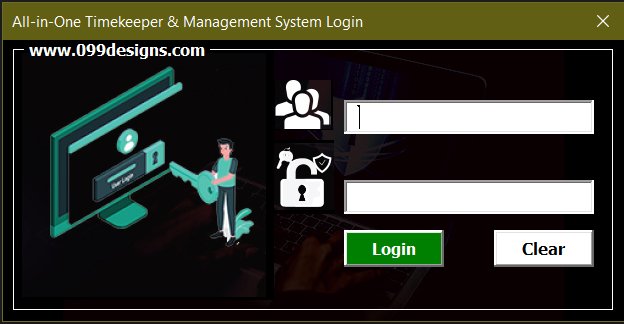
Step 2: Exploring the Centralized Command Dashboard
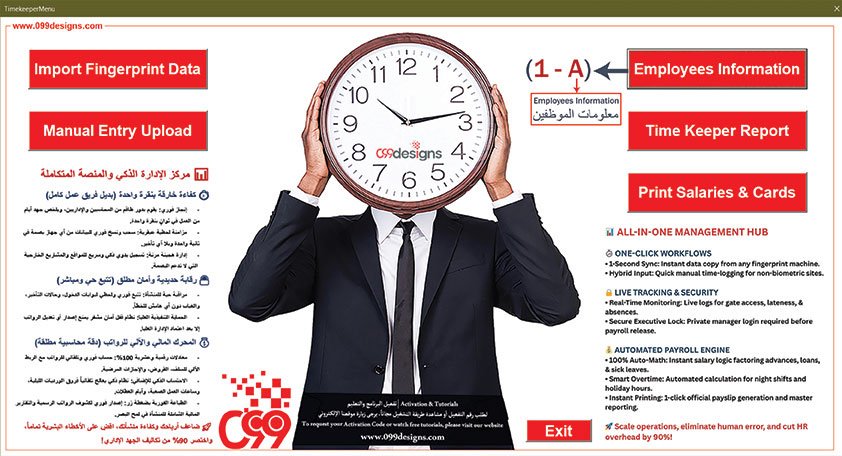
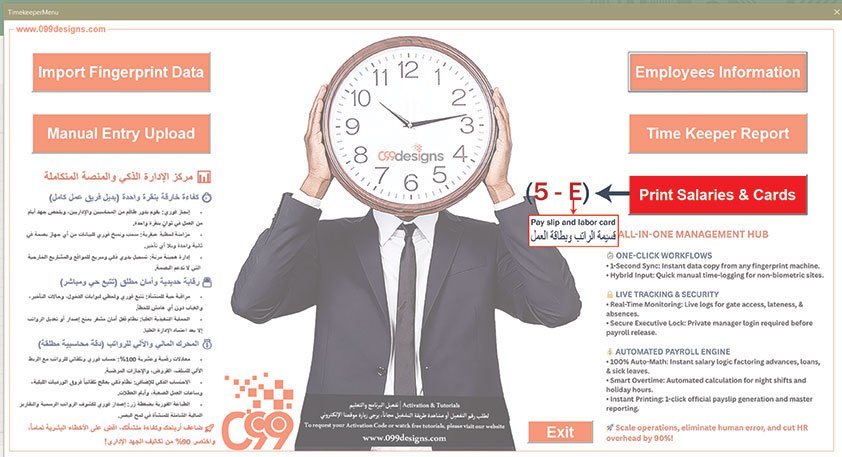
The centralized control console operates as the primary core architecture mapping all background functions. Divided cleanly into reactive structural sectors, it maps out single-click workflows for database modifications, biometric uploading, automated logging overrides, historical reports, and final physical asset compilation.
- Data Aggregation: Inbound biometric pipelines.
- Dynamic Overrides: Live logging corrections.
- Analytical Engines: Integrated attendance parsing.
- Asset Generation: Certified payslips and badges.
Every dynamic controller marked across this console executes background routines instantaneously, translating dense multi-threaded calculations into simple interactive outputs for streamlined workspace operations.
Step 3: Populating Employee Profiles Database
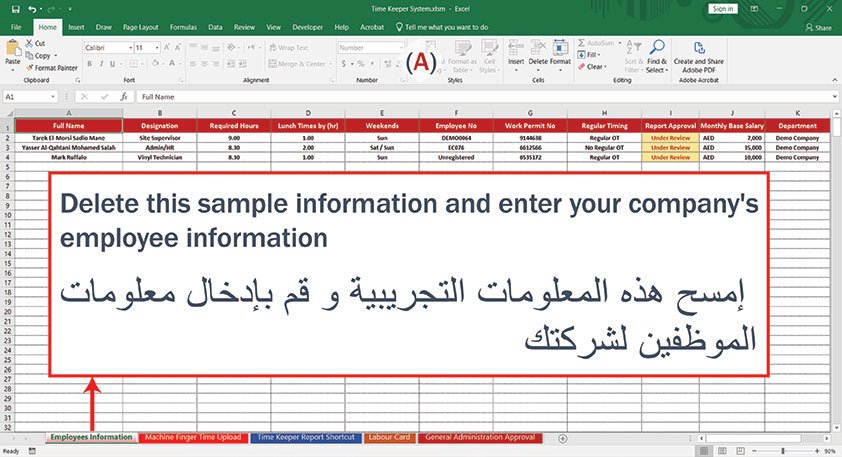
Triggering the Employees Information asset link maps directly into the master spreadsheet environment designated as sector A. This sheet is the fundamental backbone for the computational payroll calculation matrices.
Data Cleansing Advisory
Ensure that all default testing records are completely purged before migrating your live enterprise data. Insert your company's official corporate roster, including specific operational hour boundaries, baseline contractual wages, and location routing maps.
Input fields dynamically track full legal designations, dedicated payroll keys, operational shifts, and base financial constants. This structural isolation guarantees precise tracking and zero systemic interference during downstream financial balancing cycles.
Step 4: Activating the Biometric Ingestion Port
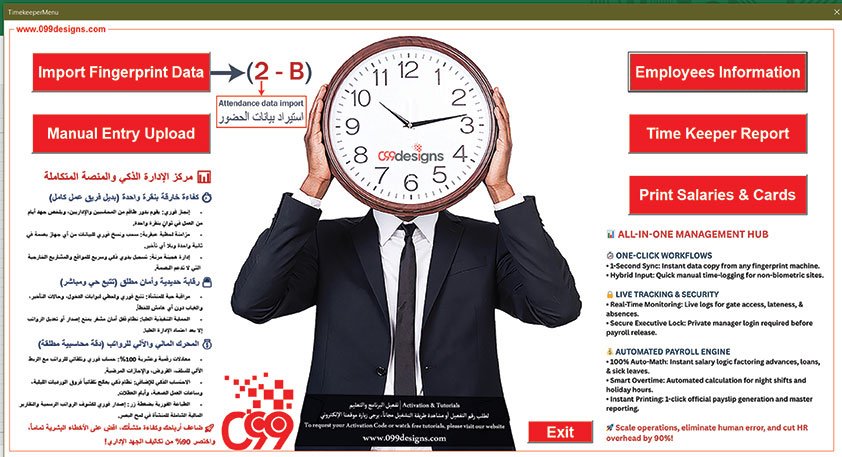
To compute precise, unalterable attendance records, the ecosystem provides a high-tier bridge to ingestion modules. Accessing the main console and steering into the Import Fingerprint Data control router initialized as sector 2-B initializes background data compilation tools.
This automated script establishes data pathways to capture raw chronological tracking packets directly from any hardware biometric security device deployed on-site, preparing the system for immediate relational alignment.
Step 5: Processing Raw Machine Attendance Streams
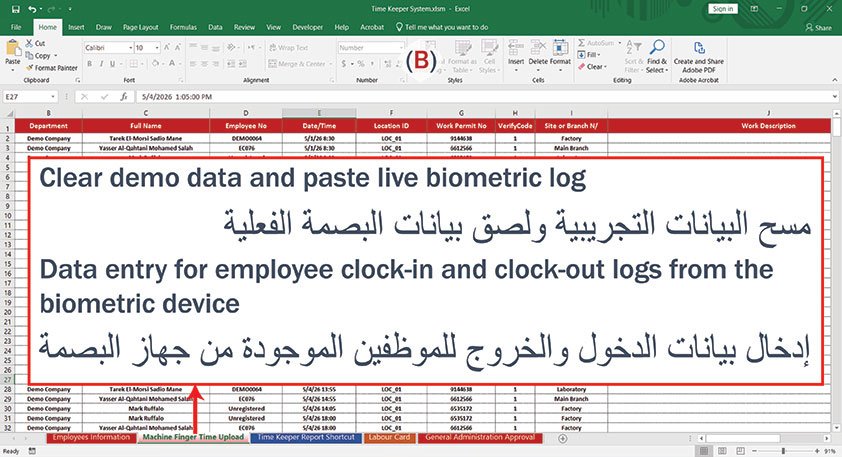
Upon bridging data feeds, the workbook transitions directly into the master Machine Finger Time Upload repository marked as sector B. This central database acts as an immutable ledger containing every chronological clock-in and clock-out interaction performed across your physical operational points.
- Purge Sample Logs: Reset testing datasets completely.
- Live Insertion: Paste direct raw biometric tracking files.
- System Verification: Auto-validation of employee IDs.
- Chronological Sorting: Precision timestamps.
The processing architecture reads thousands of lines simultaneously, scanning, filtering, and assigning timestamped inputs to active employee IDs in less than a second.
Step 6: Deploying Manual Attendance Adjustments
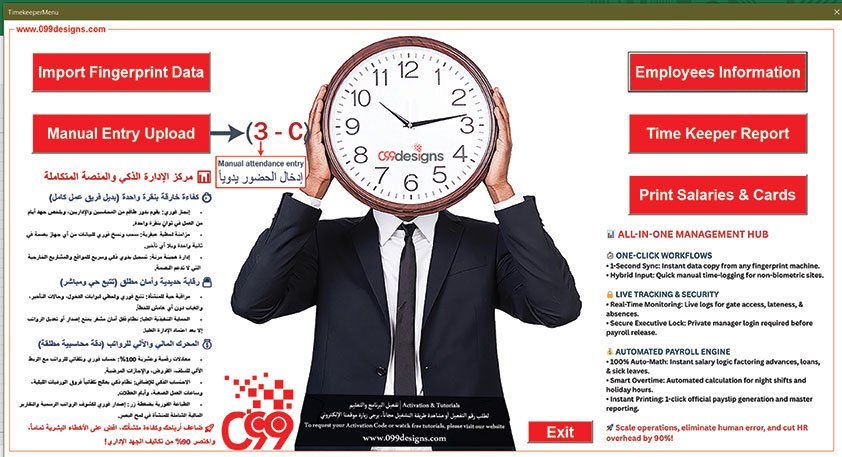
To account for operational contingencies such as client off-site dispatches, field work, or physical badge failures, the control framework features a robust manual override portal. Selecting the Manual Entry Upload controller categorized as sector 3-C safe-boots an interactive configuration pop-up modal directly inside the system.
This path securely opens structural adjustment windows without exposing or compromising raw historical database baselines, ensuring smooth administrative continuity.
Step 7: Executing Authorized Administrative Overrides
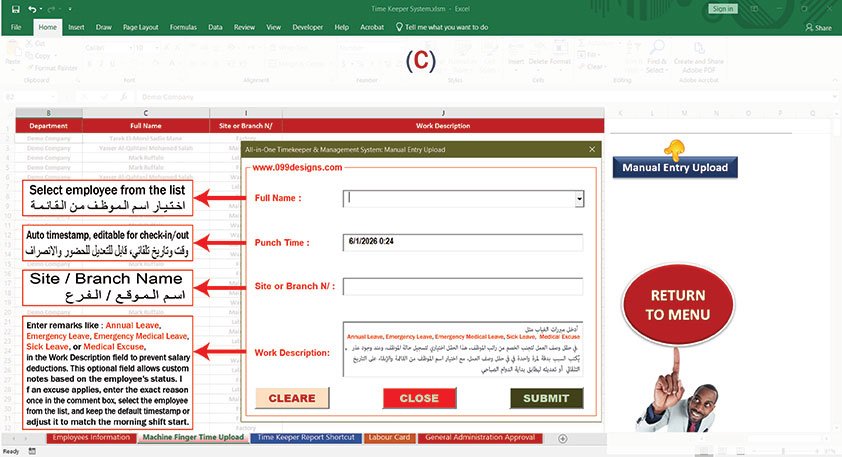
The operational modal for sector C acts as a secure data-entry layer. Every metric registered via this form dynamically feeds back into the calculation sheets to override biometric gaps or missing logs.
- Full Name Selection: Smart structural lookup.
- Punch Time Allocation: Adaptable timeline syncing.
- Branch Tagging: Localized site accountability.
- Work Description: Documented absence mitigation.
Payroll Protection Protocol
Utilize the Work Description text window to supply mandated exemption clauses like Annual Leave, Sick Leave, or Medical Excuse. This entry bypasses the automated deduction engine, safeguarding baseline employee wages from unfair computational penalties.
Step 8: Routing to Master Attendance Reports
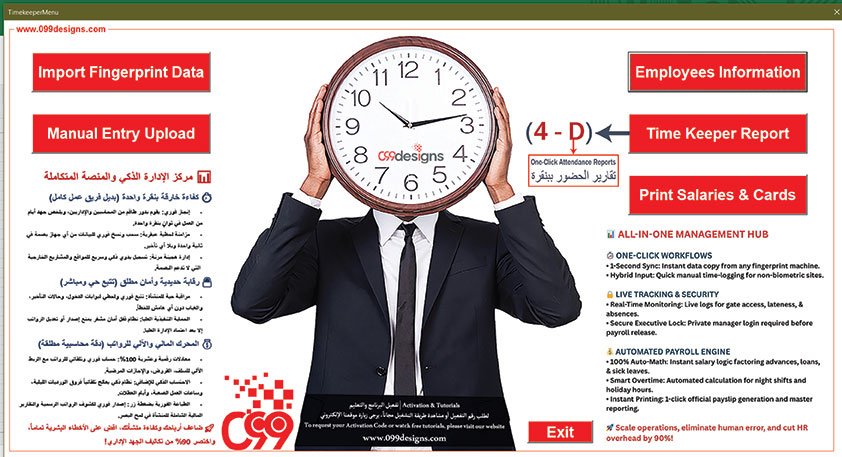
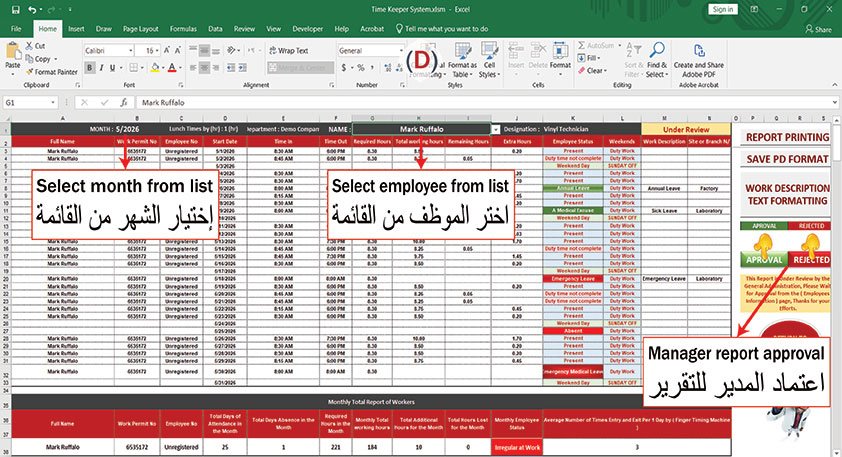
Transforming raw transactional timelines into structural financial insights is handled through the dedicated analytics gateway. Executing the Time Keeper Report dashboard controller mapped under sector 4-D launches the analytical engine.
This action commands the system to parse combined biometric data and manual adjustments, building an interactive, high-fidelity tracking summary for corporate auditing.
Step 9: Reviewing and Authorizing Monthly Audits
The interactive workspace inside sector D acts as your primary accounting ledger. Financial controllers can audit operational behaviors across customized timeframes with extreme flexibility.
- Month Selection: Dynamic historical parsing.
- Employee Filtering: Instant target data queries.
- Color Coding: Automated status visualization.
- Managerial Sign-off: Security status validation.
Managerial Review Mandatory Loop
Schedules default to an unverified Under Review layout. Corporate leads must manually utilize the interactive APPROVAL or REJECTED command toggles. This executive lock ensures payroll records are locked tight against unauthorized modifications.
Step 10: Generating Secure Document Outputs
The final operational pipeline manages the automatic assembly of physical documentation and certified statements. Accessing the central dashboard and activating the Print Salaries & Cards controller assigned to sector 5-E triggers the asset generation compiler.
This automated framework seamlessly links processed tracking data with financial rules, compiling comprehensive profiles that are immediately ready for print or digital archiving.
Step 11: Exporting Certified Payroll & Worker Badges
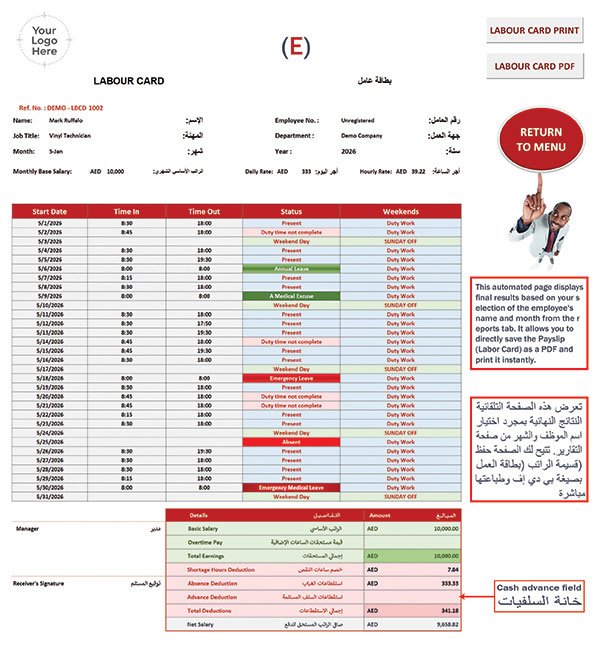
The system reaches maximum efficiency within sector E, dynamically compiling individual employee datasets into a professional, unified corporate document layout. It automatically embeds your company's custom branding alongside highly precise calculations.
- Automatic Calculations: Instant daily/hourly wage tracking.
- Cash Advance Tracking: Secure management of advances.
- Deduction Automation: Precise shortage and absence penalties.
- Instant Exports: Quick printing or secure PDF saving.
By selecting an employee profile and setting the target month in your analytics suite, this page dynamically structures total earnings, accounts for overtime, deducts advanced loans via the specialized Cash Advance Field, and determines the final net salary. The completed document is completely ready for authorized corporate signatures and immediate payment distribution.
TimeKeeper: The 1-Click Payroll & Attendance Automation Hub for 500+ Employees via Copy-Paste or Manual Entry
The ultimate biometric-compatible engine that instantly generates accurate payroll ledgers and attendance reports, with a built-in flexible portal for manual punch-time overrides.


